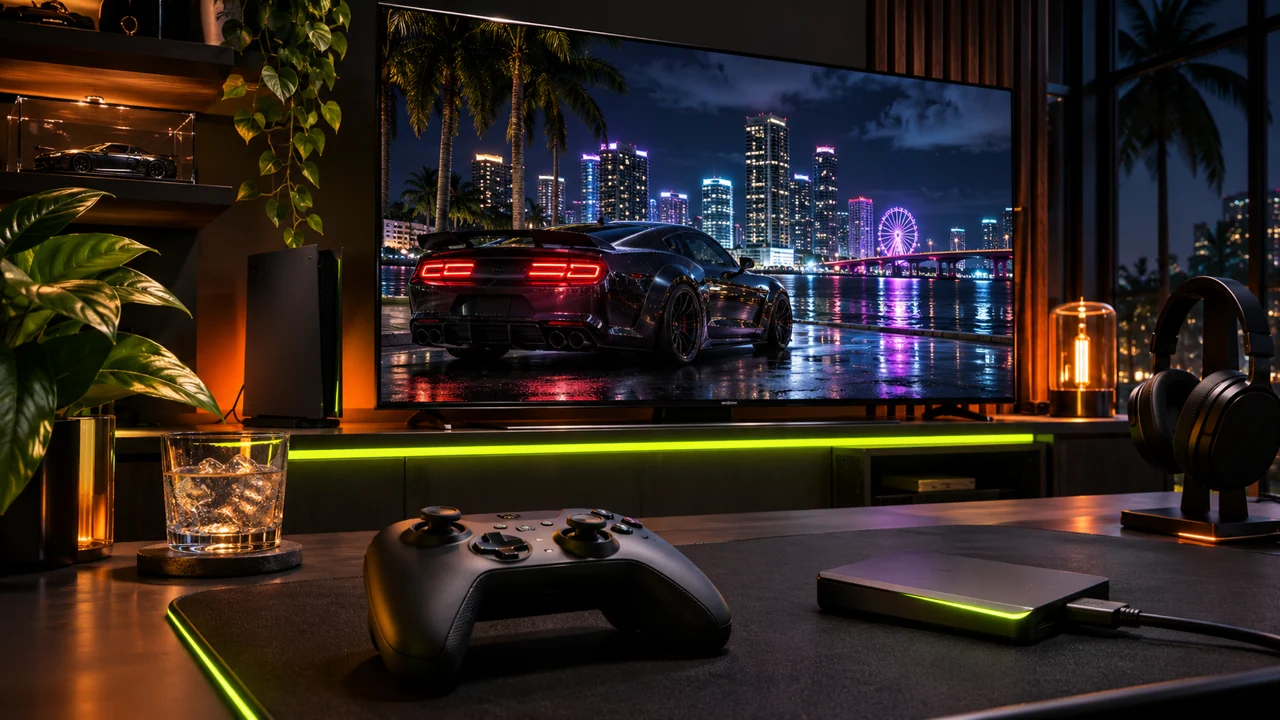
Start with the display connection
Check that the TV input and cable support the signal you want. Use the TV maker’s gaming instructions and note which picture mode is active. A capture shared online can look different from the same game on your own screen.
PS5 HDR calibration
Sony places HDR controls under Settings → Screen and Video → Video Output. Use Adjust HDR and follow the calibration screens. Use the supported output choices for your display; a single brightness number is not correct for every TV.
120 Hz is not a 120 fps promise
The PS5 output option enables 120 Hz for supported screens and games. It does not make every game render at 120 frames per second. Do not buy a monitor based on an assumed GTA VI frame rate; check the game mode and current platform evidence.
A repeatable picture test
Use the same scene and lighting for each comparison. Change one setting, inspect bright details and dark areas, then record the result. Keep a note of your original settings so you can return to them. If a setting makes the image worse, revert it instead of stacking more adjustments.
Xbox and different monitors
Use the console’s display information and your manufacturer’s instructions for that particular model. A PS5 menu path is not an Xbox menu path. Separate signal compatibility, panel capabilities and the game’s rendering mode when comparing results.
CHECK THE EVIDENCE
Sources & verification
Reviewed November 24, 2026. Source-based guidance; no firsthand gameplay testing is claimed unless explicitly stated. Details may change after this date.
PlayStation Support: enable and adjust HDR ↗PlayStation Support: resolution and video output ↗